
When someone types in your main domain, your WordPress homepage is the first thing they see. Depending on how you set it up, WordPress can greet visitors with your latest blog posts or showcase a specific Page you’ve chosen as your front door.
Most business websites benefit from a static homepage. With this setup, you control your main message, highlight calls to action, showcase customer proof, and guide visitors where you want them to go. Best of all, you don’t have to worry about the page changing every time someone publishes a new post.
The good news? Setting up a static homepage in WordPress only takes a few minutes.
How Do You Set a Homepage in WordPress?
Here’s how you can set a static homepage for your WordPress site.
- Start by creating and publishing a Page that will serve as your homepage.
- If you plan to publish blog posts, make a second Page for your blog.
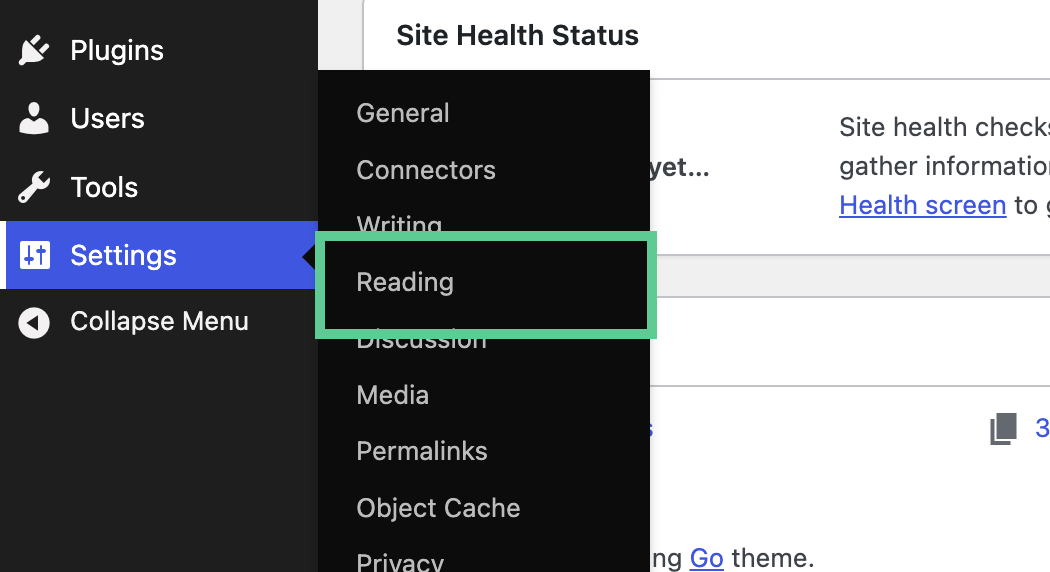
- Next, head over to Settings and choose Reading.
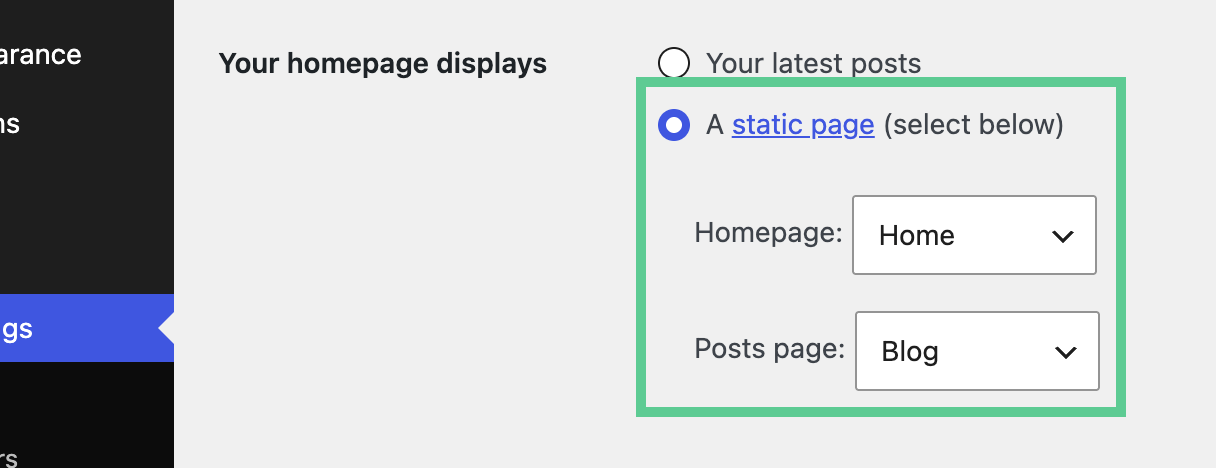
- Look for the section labeled ‘Your homepage displays’ and select the option for a static page.
- From there, pick your Home Page from the dropdown menu.
- If you created a Blog Page, select it under Posts page.
- Don’t forget to save your changes before you leave the page.
Now, when someone visits your main domain, they’ll see the Page you picked as your homepage.
Just remember, your Homepage and Posts page need to be two separate Pages.
What Is a WordPress Homepage?
Think of your WordPress homepage as the content that lives at the very root of your website.
If your domain is:
example.comThat homepage is what visitors see when they land on your main address.
WordPress supports two main homepage configurations:
Your latest posts: WordPress displays a chronological list of recent posts.
A static page: WordPress displays a specific Page that you select.
The word “static” can be a little misleading. Even with a static homepage, you can include videos, forms, buttons, recent posts, product details, testimonials, and plenty of other dynamic elements.
All it really means is that WordPress uses a Page you choose as the front page, instead of automatically showing your latest posts.
Should Your WordPress Homepage Show Latest Posts or a Static Page?
If most people come to your site for the newest articles or updates, letting WordPress show your latest posts on the homepage makes sense.
On the other hand, if your website’s job is to introduce your organization, generate leads, sell products, or guide different audiences to the right resources, a static homepage gives you more control.
When latest posts make sense
A latest-posts homepage can work well for:
- Personal blogs
- News sites
- Commentary sites
- Editorial projects centered on frequent publishing
The big advantage here is simplicity. Every time you publish a new post, it shows up right at the top.
The tradeoff is that your homepage is always changing based on what you publish. That means your latest post becomes the first thing visitors see, even if it’s not your most important message.
When a static homepage makes sense
But most business websites need a little more control over what visitors see first.
A software company may want its homepage to explain its product and point visitors toward a demo. A university may need separate paths for prospective students, current students, faculty, and alumni. A publisher may want to feature selected stories rather than simply displaying posts by date.
A static homepage lets you keep your main business message front and center, separate from your publishing schedule.
This way, your content team can keep publishing new posts without accidentally changing what visitors see when they first arrive.
How to Set a Static Homepage in WordPress
1. Create your Home Page
In the WordPress dashboard, go to:
Pages > Add Page
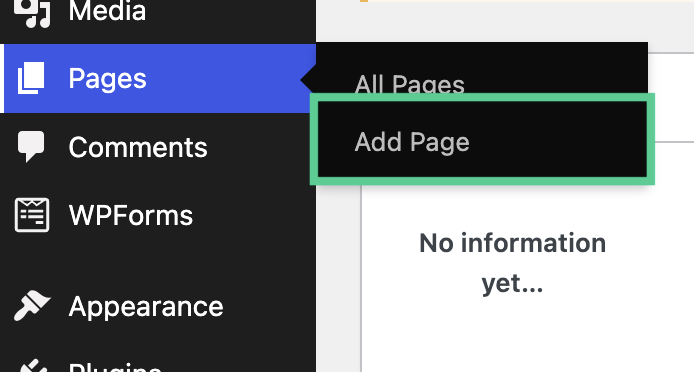
You can call this Page “Home” or pick another name that makes sense for your team.
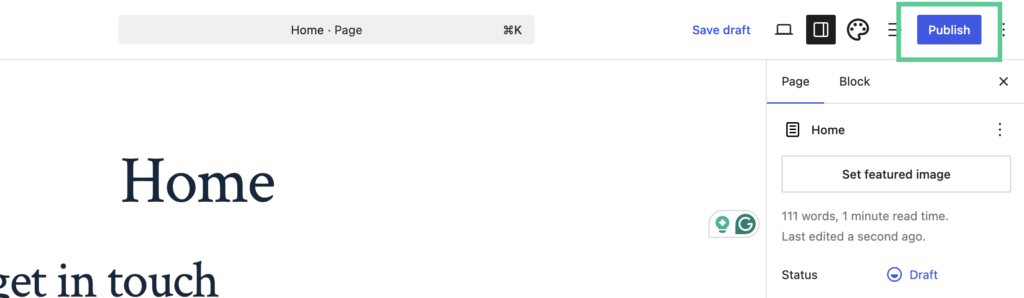
Add the content you want people to see when they land on your main domain, then hit Publish.
A business homepage should quickly answer three questions:
- What does the organization offer?
- Who is it for?
- What should the visitor do next?
Clarity always wins. You don’t need to cram every service, product, or company detail onto a single screen.
2. Create a Blog Page
If your site includes a blog or news section, create another Page and name it Blog, News, or whatever fits best.
Go ahead and publish this Page, but don’t worry about adding a manual list of posts inside it.
Once WordPress assigns this Page as your Posts page, your theme takes over and controls how the post archive looks. Any content you add directly to the Page probably won’t show up the way you expect.
3. Open Reading Settings
Go to:
Settings > Reading
Find Your homepage displays.
Choose:
A static page
4. Assign the two Pages
Use the dropdown menus to select:
Homepage: Home
Posts page: Blog
Be sure to save your changes before leaving the settings.
Your site can now have a structure such as:
example.com/
Your business homepage
example.com/blog/
Your latest posts
example.com/blog/post-name/
An individual post
With this setup, visitors always know where to learn about your business and where to find your latest content.
What Is the Difference Between a Homepage and a Posts Page?
The homepage is the front page of the website.
The Posts page is the archive where WordPress displays published Posts when you’re using a separate static homepage.
Each one serves a different purpose.
Your homepage may contain service information, products, calls to action, customer proof, and navigation for different audiences.
Your Posts page usually presents articles in a list or grid controlled by the active WordPress theme.
This separation becomes even more valuable as your business grows. Marketing can focus on the homepage and business priorities, while your editorial team keeps publishing without stepping on each other’s toes.
Why Can’t You Edit the WordPress Posts Page Normally?
Once a Page is assigned as the Posts page, WordPress uses the theme’s blog or home template to control much of what visitors see there.
This setup can be confusing if you’re new to WordPress.
You may create a Page called Blog, write an introduction inside it, and then find that the text doesn’t appear after assigning the Page under Reading Settings.
Don’t worry, the Page isn’t broken.
If you want your posts archive to look different, check your theme’s templates or the Site Editor instead of editing the Blog Page over and over. Block themes commonly provide template controls.
What Should a Business Homepage Include?
A good business homepage helps visitors figure out where they are and what to do next, fast.
A clear description of the business
Let people know what you offer and who it’s for.
Skip the clever headlines that make people guess. Make it easy for visitors to see if your company is right for them.
One primary next step
Decide what you want a qualified visitor to do next.
That could be:
- Contact sales
- Request a demo
- Compare services
- Browse products
- Apply
- Subscribe
- Read current coverage
It’s fine to offer secondary actions, but if you give six options equal attention, you’ll just make the choice harder for everyone.
Evidence
Customer stories, results, reviews, certifications, and other proof help answer the big question on every visitor’s mind: Why should I trust this company?
For Pagely, visitors can explore relevant customer stories after learning about the platform.
Paths for different audiences
Some sites serve very different visitors.
A university might need routes for students, faculty, parents, and alumni. An agency may need separate paths for prospective clients and current customers.
Your homepage doesn’t have to explain everything. Its real job is to help each visitor find the right next step.
What Are Common WordPress Homepage Problems?
“I created a Home Page, but WordPress isn’t showing it.”
Just naming a Page “Home” doesn’t make it your homepage automatically.
You’ll need to go to Settings, choose Reading, select A static page, and assign the right Page under Homepage.
“My Blog Page content isn’t showing.”
If you’ve set a Page as your Posts page, remember that its layout is controlled by your theme’s posts template.
So, if you want to change how it looks, update the right template instead of editing the Page itself.
“I changed my homepage but still see the old one.”
First, double-check that Settings > Reading is pointing to the right Page.
If everything looks correct, caching might be showing you an old version. Try clearing your browser and hosting cache before changing anything else in WordPress.
Changing a bunch of settings at once can make it harder to figure out what’s really going on.
“My new homepage works, but visitors can’t find the blog.”
Take a look at your site’s navigation menu.
After you’ve set up a separate Posts page, make sure there’s a Blog or News link in your navigation where visitors expect to find it. Don’t forget to check the mobile menu and footer, too.
“Should I change an established homepage directly on the live site?”
If you’re just assigning a new Page, the risk is usually small. But if you’re planning a bigger homepage redesign, take your time and plan carefully.
Remember, things like forms, templates, navigation, analytics, responsive layouts, and caching can all be affected by homepage changes.
It’s always smart to test big changes on a WordPress staging site before you push them live.
WordPress Homepage FAQ
Can a WordPress homepage show both static content and recent posts?
Yes, you can. A static homepage can include a block or theme component that shows recent posts, while the rest of the Page stays the same.
Do I need a separate Blog Page?
You only need a separate Blog Page if you want a dedicated posts archive alongside your static homepage. If your site doesn’t publish Posts, you might not need one at all.
Can the Homepage and Posts page be the same Page?
No, WordPress needs you to use two different Pages when you set up a static homepage and a Posts page.
Can I change my WordPress homepage later?
Yes, you can change your homepage anytime. Just go back to Settings > Reading and pick a different Page. Don’t worry, changing the assignment won’t delete your old homepage.
Does changing the homepage change my domain name?
No, changing your homepage doesn’t affect your domain name. The Page you assign as your homepage will always show up at your main site URL.
Choose a Homepage Based on What Visitors Need to Do
The best WordPress homepage setup really depends on what your website needs to do.
If visitors primarily come for the newest articles, a latest-posts homepage may be enough.
If your site’s job is to explain your business, generate leads, sell products, or serve different audiences, a static homepage gives you more control over that crucial first impression.
Take a moment to check Settings > Reading on your site. See which homepage option is active, where your Posts show up, and whether your navigation matches that setup.
Then, visit your site like a customer would. Is it clear what your organization does? Is the next step obvious? Can you find the blog without hunting for it?
These simple checks can turn a basic WordPress setting into a much better experience for the people you want to reach. For larger WordPress sites where homepage changes involve templates, caching, deployments, or other infrastructure, explore Pagely’s premium WordPress support or contact us to discuss your requirements.

The post How to Set a WordPress Homepage for Your Business appeared first on Pagely.


Recent Comments