

Google Tag Manager (GTM) is a free tool from Google that lets you add, edit, and manage tracking tags and code snippets on your WordPress website from a single web interface without editing your theme files each time. If you’re looking for a better way to add and manage third party tags and scripts on your WordPress website, then the free GTM service could be just what you are looking for.
Google Tag Manager supports a plethora of tags including those from Google’s own services. Whether you’re adding Google Ads or Analytics tracking code to your site or third party SaaS scripts, the Google Tag Manager hub gives you a central location through which you can manage all of those code snippets. Some of these third-party tags include the Meta Pixel, LinkedIn Insight, and Hotjar. This diverse support allows you to collect a broad range of data and analyze your site’s performance more comprehensively. Not only that, but you can also start creating your own tags to better track against certain conversion events on your site.
Compared to manually editing the code of your WordPress theme each time you want to add a new piece of tracking code, using GTM makes your life and that of your marketing and development teams much easier. In this article, we will give you a quick overview of this service, including some of the benefits of using it, as well as how you can get started with GTM for your WordPress website.
If you’d like a faster, safer, and more efficient way to work with the scripts and tags that are to be added to your website, then read on to find out more about Google Tag Manager for WordPress.
Google Tag Manager Tags
What Tags Can You Manage?
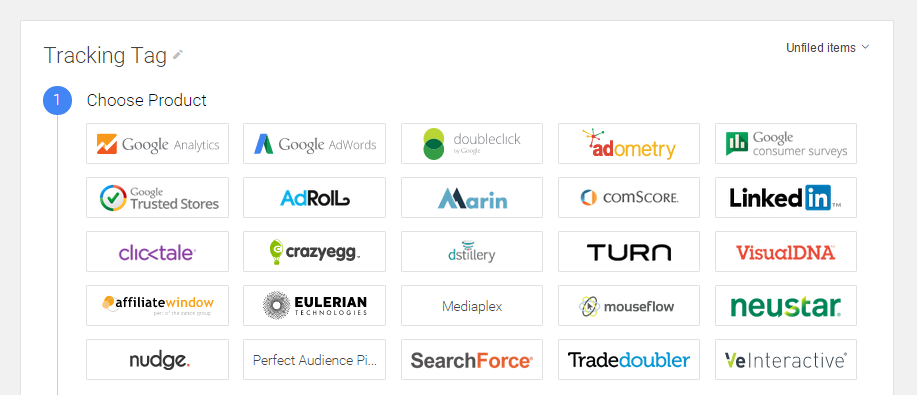
Google Tag Manager supports a range of tags including those from their own services, such as Google Ads and Analytics, as well as custom third party tags. Therefore, if you’ve ever struggled to keep track of, or add and remove tracking scripts and code snippets for your WordPress website, the GTM could eliminate some of that stress.
As well as the list of currently supported tags, you are also free to add your own custom HTML or image tags through the GTM hub. Therefore, if you are using a SaaS service that requires you to add a snippet of HTML to certain or all pages on your site, you can quickly do this through the tag manager, rather than manually adding the code to the site yourself.
8 Benefits of Using Google Tag Manager on Your WordPress Website
Making use of the single hub that Google Tag Manager provides has a number of benefits that will appeal to website owners and those managing the marketing, monitoring, and optimization of websites for a living. Here’s a quick rundown of the main advantages before we look at each in detail: workspaces for safe experimentation, faster page load times, decentralized tag management for your team, version control, consistent conversion data across systems, a single dashboard, and added privacy.
Workspaces
Let’s say you’re launching a new marketing campaign and you need to add several new tags and triggers to track performance. You can create a new Workspace in GTM specifically for this campaign. Here, you’ll be able to experiment, test, and refine your tracking setup without affecting the main website’s existing analytics setup. Once you’re satisfied with the configuration, you can merge these changes back into the main workspace and push them live, all neat and tidy!
This feature not only minimizes the risks of errors, but also enhances efficiency. It’s a godsend for teams that need to manage multiple large-scale projects or updates simultaneously. Plus, if you can believe it, it also maintains a version history, so you can always roll back to a previous setup if something doesn’t work out as planned.
Faster Page Load Times
Perhaps the number one benefit of using the GTM hub is improved page loading times. We’ve talked about the benefits of having a fast loading website many times before, as well as covering the different ways you can measure the speed of your website and then go about improving this all-important metric. Page speed also remains a ranking signal through Google’s Core Web Vitals, so keeping third party scripts lean has search benefits as well as user-experience ones.
Another way you can improve your loading times is to ensure that the third party tracking code and other scripts you add to your website are loaded asynchronously. Not only does GTM provide this, but it also reduces the number of scripts that are added to your site.
Democratize Script and Tag Management
Obviously, you don’t want just anyone to be able to add scripts and snippets to your website. However, neither do you want to keep getting requests from your marketing team to update your site with new tracking code, or worse still, have to keep calling your developer to get them to add the required code to your site.
Once you’ve enabled Google Tag Manger on your website, either manually or through one of the third-party WordPress plugins, you can then provide your team with access to the GTM hub. This then allows them to add the tags they need, all without editing the site directly or requiring access to its underlying files.
If you or your team wants to quickly setup monitoring of a new conversion goal or add a new tracking script to your site, this can be carried out instantly through the GTM web interface – no more waiting for developers to edit multiple files and upload them to the server.
Version Your Tags and Scripts
Through the visual interface of the Google Tag Manger, it’s easy to version and iterate your scripts. This then gives you the ability to rollback any changes that have been made, should the need arise – something that isn’t so easy to do when you’re simply pasting code directly into the theme files of your website.
Consistent conversion event details across all 3rd party systems
Another benefit of bringing all of your tracking and analytics data under one roof is that you get access to consistent conversion event details across all of the third party systems you are using. This then makes it easier for you and your team, not to mention your clients, to gain access to consistent reports that are easy to understand. This consistency matters more than ever now that Google Analytics 4 uses an event-based data model, where every interaction from page views to purchases is captured as an event that can be shared across your connected tools.
One Central Dashboard
If you’ve ever taken control of an undocumented website and needed to find out which additional scripts are running and on which pages, you would’ve appreciated being able to see them all in one central dashboard. With Google Tag Manager, that’s what you get and through the dashboard, you can quickly see at a glance, which third party scripts are running on your site.
If you’ve ever forgotten which code you’ve added to your site, or where, this benefit alone makes using GTM worthwhile.
Furthermore, the benefits of being able to manage the tags for multiple websites through a single GTM account should be obvious.
Privacy and Stealth
Finally, if you’d like to keep the third party tools and scripts you are using on your site private, then letting Google Tag Manager take care of them can prevent them being easily revealed to your competitors. You can even deter non-malicious snoopers who’d like to include your website in a Built With list by using GTM.
How to Use Google Tag Manager with WordPress
If you like the sound of what Google Tag Manager has to offer, then you will be pleased to learn that it’s very easy to use this service on your WordPress website.
There’s already a popular plugin out there, which makes the process of integrating the GTM code with your website very straightforward, preventing you from having to edit your theme files yourself in order to add the initial code. After creating your free Google Tag Manager account, installing the free GTM4WP plugin will quickly add the relevant code to each page on your website.
Once your Google Tag Manager account and WordPress website are connected, you can then begin adding a range of tags to your site in order to start tracking all sorts of data and events, such as PPC tags, conversion codes, and e-commerce data, including that from WooCommerce.
How do I set up Google Tag Manager on WordPress?
Getting started takes just a few steps:
- Create a free Google Tag Manager account at tagmanager.google.com and set up a container for your website. You’ll be given a container ID that looks like
GTM-XXXXXX. - Install the GTM4WP plugin from your WordPress dashboard under Plugins → Add New, then activate it.
- Enter your container ID under Settings > Google Tag Manager, and choose where the container code should be placed.
- Add your tags in GTM, such as Google Analytics 4, Google Ads, or the Meta Pixel, and publish your container to make them live.
Because the plugin also builds a data layer with page and user information, you can fire tags based on detailed rules without writing custom code for each one.
Final Thoughts
By using Google Tag Manager and one of the free WordPress plugins, you can start quickly adding tags to your websites all through a centralized web interface, rather than editing the underlying code each time. Not only that but you can now enable your team to add and manage their own tracking tags and snippets, all without giving them access to the underlying code of your site.
Google has been consistently improving the GTM service since its launch. With regular updates and additions, it’s beneficial to stay informed about the changes to make the most out of this powerful tool. Check out Google’s official Tag Manager blog or community forums to stay updated with the latest GTM features and improvements.
Frequently asked questions
Is Google Tag Manager free?
Yes. Google Tag Manager is completely free to use, and the GTM4WP plugin that connects it to WordPress is free as well.
Do I still need Google Analytics if I use Google Tag Manager?
Yes. They serve different purposes. Google Tag Manager is a delivery system that manages and fires your tags, while Google Analytics 4 is the tool that actually collects and reports your data. Most people use GTM to deploy their Analytics tracking.
Does Google Tag Manager slow down my website?
Generally no, and it often helps. GTM loads tags asynchronously and lets you consolidate scripts, which can reduce the performance impact compared to hard-coding multiple tags directly into your theme.
Can I use Google Tag Manager without a developer?
Yes. That’s one of its main advantages. Once the container is installed, you and your marketing team can add, edit, and remove most tags through the web interface without touching your site’s code.
If you want to know more about the benefits of using Google Tag Manager on your website, be sure to check out the official guide.

The post Google Tag Manager for WordPress: 8 Killer Reasons to Start Using It appeared first on Pagely.


Recent Comments